

Before you start
- GSA Search Engine Ranker, installed and licensed.
- A DomDetailer API key. Buy credits, or find your key on your account page.
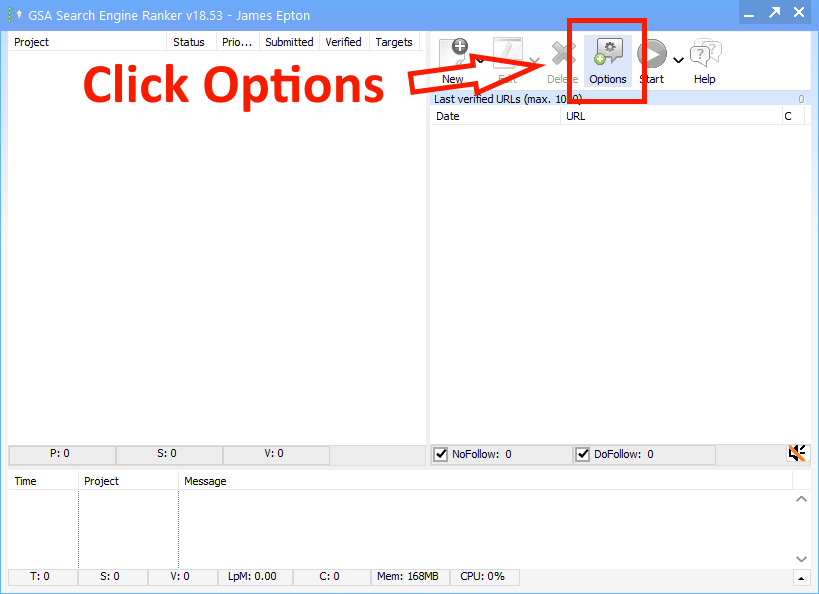
01 Open Options, then Advanced
Click Options to open the options panel, then choose Advanced from the list on the left.
02 Enable the metric lookup
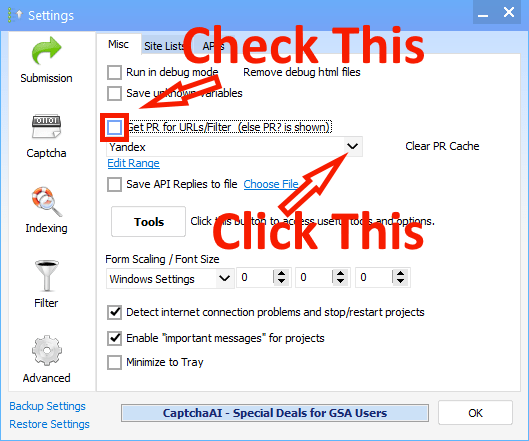
Tick Get PR for URLs, then click the arrow beside it to open the list of available data sources.
GSA SER predates the retirement of PageRank, so its terminology still refers to PR. In practice that setting is now the general "fetch a quality metric" switch.
03 Choose which metric to filter on
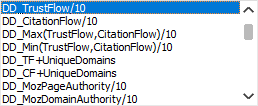
Pick the DomDetailer figure that will stand in for PageRank when SER decides whether a target is worth using.
If you are unsure, DD_TrustFlow/10 is a sensible default: Trust Flow is harder to inflate than raw link counts, and dividing by ten maps it onto the 0-10 range SER expects. The field reference covers the alternatives.
04 Paste your API key
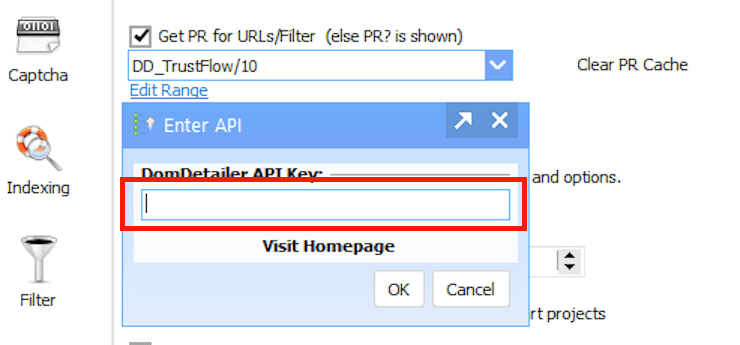
Choosing a DomDetailer data point prompts for your API key. Paste it in and click OK.
Review your domain shortlist
Once setup is complete, you can check Domain Authority and Trust Flow in bulk in your browser, then inspect backlink samples, anchor text and source pages for the domains you want to investigate. The expired-domain vetting workflow explains how to turn an auction export into a shortlist for manual review.
Not working?
Check the key has no stray spaces, confirm you have credits left on your account page, and check the service status. If it is none of those, tell us what you tried and we will look.